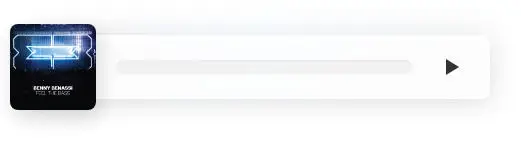



想在WordPress文章里放个音频,但又不想依赖那些动不动就几十上百KB的臃肿插件?说实话,我特别理解这种心情。有些插件功能是多,但为了一个简单的播放器,拉一堆JS和CSS,页面加载速度直接就崩了,那不是捡了芝麻丢了西瓜嘛。网上找了一圈,发现这么一个不依赖插件的纯代码播放器,直接用古腾堡的自定义 HTML模块就能插进去,感觉挺适合咱们这些注重性能的站长。
这玩意儿最大的亮点就是轻量化,而且样式也挺好看的,暂停状态和播放状态都有区分。
暂停状态
![图片[1]-WordPress主题文章音频播放器自定义HTML代码-主题铺](https://cdn.zhutipu.com/wp-content/uploads/2026/05/20260503162801658.png/ztp)
播放状态,播放的时候有高斯模糊跳动效果
![图片[2]-WordPress主题文章音频播放器自定义HTML代码-主题铺](https://cdn.zhutipu.com/wp-content/uploads/2026/05/20260503162807779.png/ztp)
特别是播放的时候,那个高斯模糊背景还会有点跳动效果,细节做得挺到位,看着就比较高级。
代码解析与使用方法
首先,你需要把提供的HTML、CSS和JavaScript代码块完整地复制下来。
完整版代码:
<div class="hifi-player-wrapper" id="hifi-wrapper">
    <!-- 利用高斯模糊天然提取并散发图片主色调 -->
    <div class="hifi-ambient-glow" style="background-image: url('封面地址.jpg');"></div>

    <!-- 主体播放器底框 -->
    <div class="hifi-player-box">
        <div class="hifi-progress-container">
            <div class="hifi-progress-bg">
                <!-- 这里融合了精美图案肌理效果 -->
                <div id="hifi-fill" class="hifi-progress-fill"></div>
            </div>
        </div>

        <div class="hifi-controls" onclick="toggleHifiPlay(this)" id="hifi-btn">
            <div class="hifi-play-icon"></div>
        </div>
    </div>

    <div class="hifi-cover" style="background-image: url('封面地址.jpg');"></div>

    <audio id="hifi-audio" src="音频文件.mp3" ontimeupdate="updateHifiProgress()"></audio>
</div>

<style>
.hifi-player-wrapper {
    position: relative;
    width: 100%;
    max-width: 480px;
    margin: 40px 0;
    padding: 15px 0;
    z-index: 1;
}

.hifi-cover {
    position: absolute;
    left: 0;
    top: 50%;
    transform: translateY(-50%);
    width: 86px;
    height: 86px;
    border-radius: 8px;
    background-size: cover;
    background-position: center;
    box-shadow: 3px 8px 20px rgba(0, 0, 0, 0.15);
    z-index: 3;
    pointer-events: none;
}


.hifi-ambient-glow {
    position: absolute;
    top: 15px;
    left: 30px;
    right: 0;
    height: 64px;
    background-size: cover;
    background-position: center;
    filter: blur(18px) saturate(160%);
    opacity: 0.1;
    border-radius: 8px;
    z-index: -1;
    transition: all 0.5s ease;
}

.hifi-player-box {
    height: 64px;
    background: rgba(255, 255, 255, 0.85);
    backdrop-filter: blur(10px);
    -webkit-backdrop-filter: blur(10px);
    border: 1px solid rgba(255, 255, 255, 0.6);
    border-radius: 8px;
    box-shadow: 0 4px 20px rgba(0, 0, 0, 0.05);
    display: flex;
    align-items: center;
    margin-left: 30px;
    padding-left: 75px;
    padding-right: 20px;
    z-index: 2;
    transition: all 0.3s ease;
}

@keyframes ambientPulse {
    0% { transform: scale(0.98); opacity: 0.5; }
    50% { transform: scale(1.05); opacity: 0.85; box-shadow: 0 10px 30px rgba(0,0,0,0.1); }
    100% { transform: scale(0.98); opacity: 0.5; }
}
@keyframes boxPulse {
    0% { transform: translateY(0px); }
    50% { transform: translateY(-2px); }
    100% { transform: translateY(0px); }
}
.hifi-playing-state .hifi-ambient-glow {
    animation: ambientPulse 2.5s infinite ease-in-out;
}
.hifi-playing-state .hifi-player-box {
    animation: boxPulse 2.5s infinite ease-in-out;
}

.hifi-progress-container {
    flex: 1;
    margin-right: 25px;
}

.hifi-progress-bg {
    height: 14px;
    background: rgba(0, 0, 0, 0.04);
    border-radius: 7px;
    overflow: hidden;
    box-shadow: inset 0 1px 3px rgba(0,0,0,0.06);

.hifi-progress-fill {
    width: 0%;
    height: 100%;
    border-radius: 7px;
    background-color: #b5ccbf;
    background-image: url("data:image/svg+xml,%3Csvg xmlns='http://www.w3.org/2000/svg' viewBox='0 0 80 40' width='60' height='30'%3E%3Cpath fill='%2340584a' fill-opacity='0.47' d='M0 40a19.96 19.96 0 0 1 5.9-14.11 20.17 20.17 0 0 1 19.44-5.2A20 20 0 0 1 20.2 40H0zM65.32.75A20.02 20.02 0 0 1 40.8 25.26 20.02 20.02 0 0 1 65.32.76zM.07 0h20.1l-.08.07A20.02 20.02 0 0 1 .75 5.25 20.08 20.08 0 0 1 .07 0zm1.94 40h2.53l4.26-4.24v-9.78A17.96 17.96 0 0 0 2 40zm5.38 0h9.8a17.98 17.98 0 0 0 6.67-16.42L7.4 40zm3.43-15.42v9.17l11.62-11.59c-3.97-.5-8.08.3-11.62 2.42zm32.86-.78A18 18 0 0 0 63.85 3.63L43.68 23.8zm7.2-19.17v9.15L62.43 2.22c-3.96-.5-8.05.3-11.57 2.4zm-3.49 2.72c-4.1 4.1-5.81 9.69-5.13 15.03l6.61-6.6V6.02c-.51.41-1 .85-1.48 1.33zM17.18 0H7.42L3.64 3.78A18 18 0 0 0 17.18 0zM2.08 0c-.01.8.04 1.58.14 2.37L4.59 0H2.07z'/%3E%3C/svg%3E");
    transition: width 0.1s linear;
}

.hifi-controls {
    width: 32px;
    height: 32px;
    flex-shrink: 0;
    cursor: pointer;
    display: flex;
    align-items: center;
    justify-content: center;
}
.hifi-play-icon {
    width: 0;
    height: 0;
    border-top: 8px solid transparent;
    border-bottom: 8px solid transparent;
    border-left: 13px solid #333333;
    transition: all 0.2s ease;
}
.hifi-playing .hifi-play-icon {
    width: 12px;
    height: 16px;
    border-top: none;
    border-bottom: none;
    border-left: 4px solid #333333;
    border-right: 4px solid #333333;
    background: transparent;
}
</style>

<script>
function toggleHifiPlay(btn) {
    var audio = document.getElementById('hifi-audio');
    var wrapper = document.getElementById('hifi-wrapper');

    if (audio.paused) {
        audio.play();
        btn.classList.add('hifi-playing');
        wrapper.classList.add('hifi-playing-state');
    } else {
        audio.pause();
        btn.classList.remove('hifi-playing');
        wrapper.classList.remove('hifi-playing-state');
    }
}

function updateHifiProgress() {
    var audio = document.getElementById('hifi-audio');
    var fill = document.getElementById('hifi-fill');
    if (audio.duration) {
        var progress = (audio.currentTime / audio.duration) * 100;
        fill.style.width = progress + '%';
    }
}

document.getElementById('hifi-audio').addEventListener('ended', function() {
    var btn = document.getElementById('hifi-btn');
    var wrapper = document.getElementById('hifi-wrapper');
    btn.classList.remove('hifi-playing');
    wrapper.classList.remove('hifi-playing-state');
    document.getElementById('hifi-fill').style.width = '0%';
});
</script>
核心思想:
这个播放器利用了HTML5的<audio>标签来实现音频播放,然后用CSS来控制播放器的外观和动画效果,最后用JavaScript来控制播放/暂停逻辑和进度条更新。整个流程非常清晰,不拖泥带水。
HTML结构
<div class="hifi-player-wrapper" id="hifi-wrapper">
    <!-- 利用高斯模糊天然提取并散发图片主色调 -->
    <div class="hifi-ambient-glow" style="background-image: url('封面地址.jpg');"></div>

    <!-- 主体播放器底框 -->
    <div class="hifi-player-box">
        <div class="hifi-progress-container">
            <div class="hifi-progress-bg">
                <!-- 这里融合了精美图案肌理效果 -->
                <div id="hifi-fill" class="hifi-progress-fill"></div>
            </div>
        </div>

        <div class="hifi-controls" onclick="toggleHifiPlay(this)" id="hifi-btn">
            <div class="hifi-play-icon"></div>
        </div>
    </div>

    <div class="hifi-cover" style="background-image: url('封面地址.jpg');"></div>

    <audio id="hifi-audio" src="音频文件.mp3" ontimeupdate="updateHifiProgress()"></audio>
</div>
这里面有几个关键的点,你得注意替换:
- 封面地址.jpg:这个需要替换成你的音频封面图片的URL。它用在了两个地方:
hifi-ambient-glow(背景模糊光晕)和hifi-cover(播放器左侧的专辑封面)。建议图片尺寸适中,比如正方形,这样显示效果会比较好。 - 音频文件.mp3:这个当然就是你的音频文件的URL了。你可以上传到WordPress媒体库,然后复制链接填进去。
CSS样式
hifi-player-wrapper是整个播放器的外层容器,控制宽度和外边距。hifi-cover是左侧的专辑封面,它做了position: absolute;和transform: translateY(-50%);来垂直居中,还加了点阴影,看起来更有立体感。hifi-ambient-glow这个就是播放时那个高斯模糊跳动效果的背景层。它利用了封面的图片,然后通过filter: blur(18px) saturate(160%);做了模糊和饱和度调整,再通过opacity: 0.1;降低了透明度,让它看起来像一层淡淡的光晕。hifi-player-box是播放器的主体部分,背景用了rgba(255, 255, 255, 0.85)和backdrop-filter: blur(10px);,实现了那种磨砂玻璃的效果,挺漂亮的。hifi-progress-container和hifi-progress-bg是进度条的背景,hifi-progress-fill则是进度条的填充部分,颜色是柔和的#b5ccbf,还用SVG图片做了一点肌理效果,这个细节给满分。hifi-controls是播放/暂停按钮,通过改变hifi-play-icon的border样式,实现了播放和暂停图标的切换,非常巧妙。
动画效果@keyframes ambientPulse和@keyframes boxPulse定义了两个动画,分别给hifi-ambient-glow和hifi-player-box在播放时添加了缩放和轻微跳动的效果。当hifi-playing-state这个类被添加到hifi-player-wrapper上时,动画就会被触发,让整个播放器看起来像是“活”了起来。
JavaScript逻辑
function toggleHifiPlay(btn) {
    var audio = document.getElementById('hifi-audio');
    var wrapper = document.getElementById('hifi-wrapper');

    if (audio.paused) {
        audio.play();
        btn.classList.add('hifi-playing'); // 给播放按钮添加类,改变图标
        wrapper.classList.add('hifi-playing-state'); // 给外层容器添加类,触发动画
    } else {
        audio.pause();
        btn.classList.remove('hifi-playing');
        wrapper.classList.remove('hifi-playing-state');
    }
}

function updateHifiProgress() {
    var audio = document.getElementById('hifi-audio');
    var fill = document.getElementById('hifi-fill');
    if (audio.duration) {
        var progress = (audio.currentTime / audio.duration) * 100; // 计算播放进度百分比
        fill.style.width = progress + '%'; // 更新进度条宽度
    }
}

// 监听音频播放结束事件
document.getElementById('hifi-audio').addEventListener('ended', function() {
    var btn = document.getElementById('hifi-btn');
    var wrapper = document.getElementById('hifi-wrapper');
    btn.classList.remove('hifi-playing');
    wrapper.classList.remove('hifi-playing-state');
    document.getElementById('hifi-fill').style.width = '0%'; // 播放结束后,进度条归零
});JavaScript代码逻辑非常直观。toggleHifiPlay()函数控制播放/暂停,并通过添加/移除CSS类来切换播放按钮图标和触发背景动画。updateHifiProgress()函数在ontimeupdate事件(音频播放时持续触发)中被调用,用来更新进度条的显示。
最后,它还监听了ended事件,当音频播放结束后,会自动重置播放器状态,把播放按钮变回播放图标,并清空进度条。
如何在WordPress古腾堡编辑器中插入?
- 打开你的WordPress文章或页面,进入古腾堡编辑器。
- 点击加号按钮添加新区块,搜索“自定义HTML”或“Custom HTML”。
- 把上面修改好封面地址和音频文件地址的全部代码(包括HTML、Style和Script标签)粘贴到这个自定义HTML区块里。
- 保存文章并预览,一个美观又轻量化的音频播放器就呈现在你眼前了。
个人踩坑提醒
- 路径问题: 一定要确保你的封面图片和音频文件链接是正确的、可访问的。有时候上传到媒体库的链接可能默认是相对路径,最好复制完整的URL。
- 缓存: 如果你加了代码发现没效果或者效果不对,先清空一下CDN缓存和WordPress缓存,浏览器缓存也清一下。
- 多个播放器: 如果你一篇文章里要放好几个播放器,那么每个播放器的
id都得是唯一的,比如hifi-wrapper-1、hifi-audio-1、hifi-btn-1、hifi-fill-1,并且JavaScript里的document.getElementById也要跟着改。不然它们会互相影响,只有一个能正常工作。当然,也可以稍微修改JavaScript,让它通过this或者父元素来查找内部元素,这样就可以复用id了,但这就有点超出“直接插入”的范畴了。
总的来说,这个音频播放器代码确实是个不错的选择,既兼顾了性能,又提供了不错的视觉效果。对于不想被插件束缚的站长来说,这简直就是福音。









暂无评论内容